

 Meta · Approved app
Visible entry point
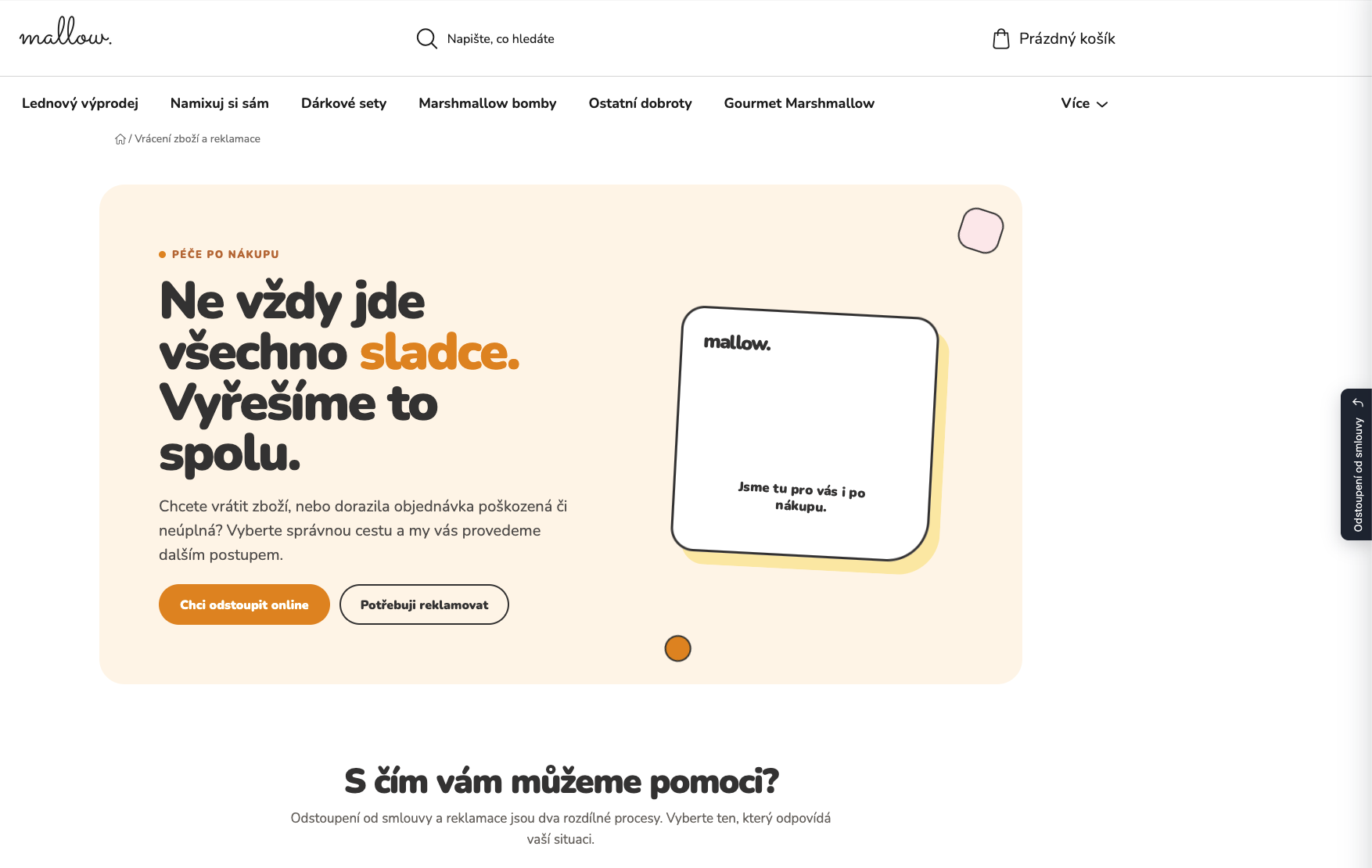
An easy-to-find route during the applicable withdrawal period.
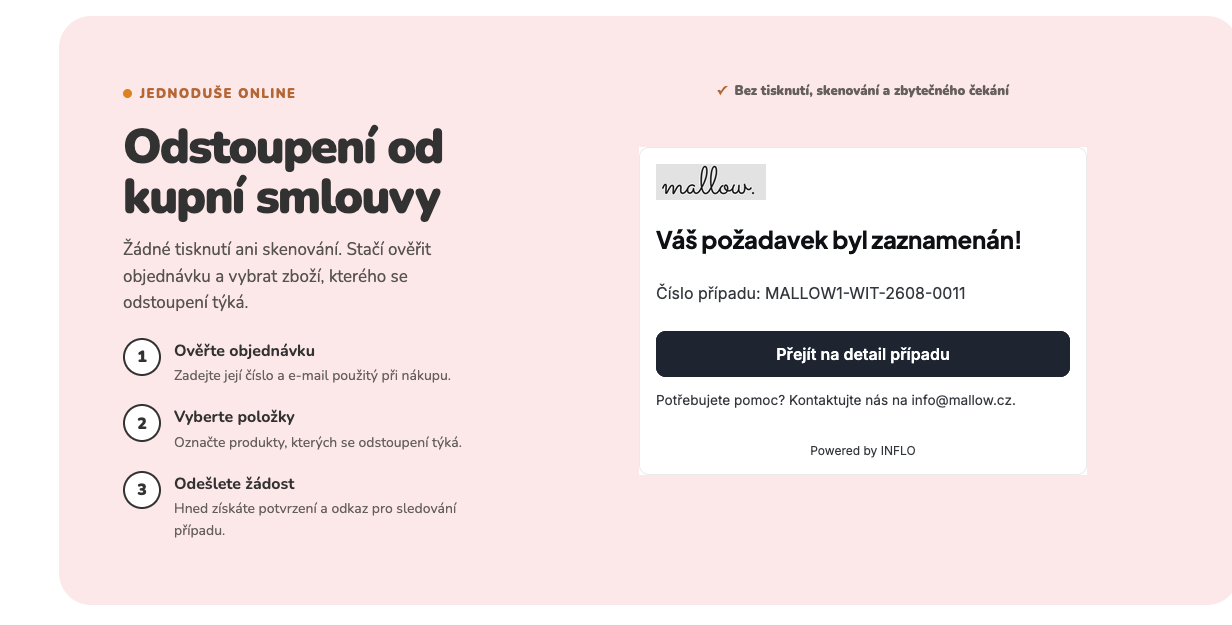
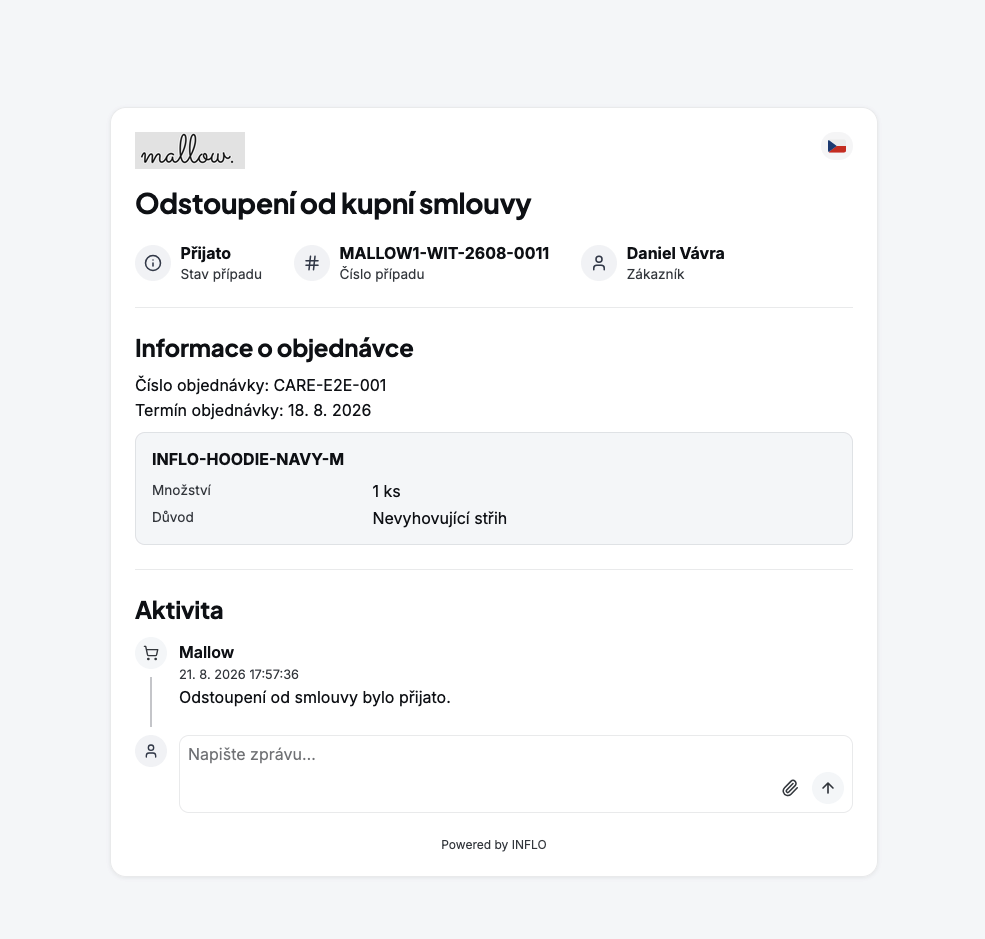
The customer submits a withdrawal online and receives confirmation. INFLO creates a traceable case with status, history and clear next steps for your team.
Activation in the INFLO portal · no changes to your order process
Join e-shops where INFLO already helps customers
EU rules introduce an easy-to-find online withdrawal function for relevant contracts concluded through an online interface. The exact implementation must follow the national rules of every market where the store operates.
Framework reviewed on . Read the legal and operational overview.
INFLO supports the technical and operational process; verify the legal setup for your store.
An easy-to-find route during the applicable withdrawal period.
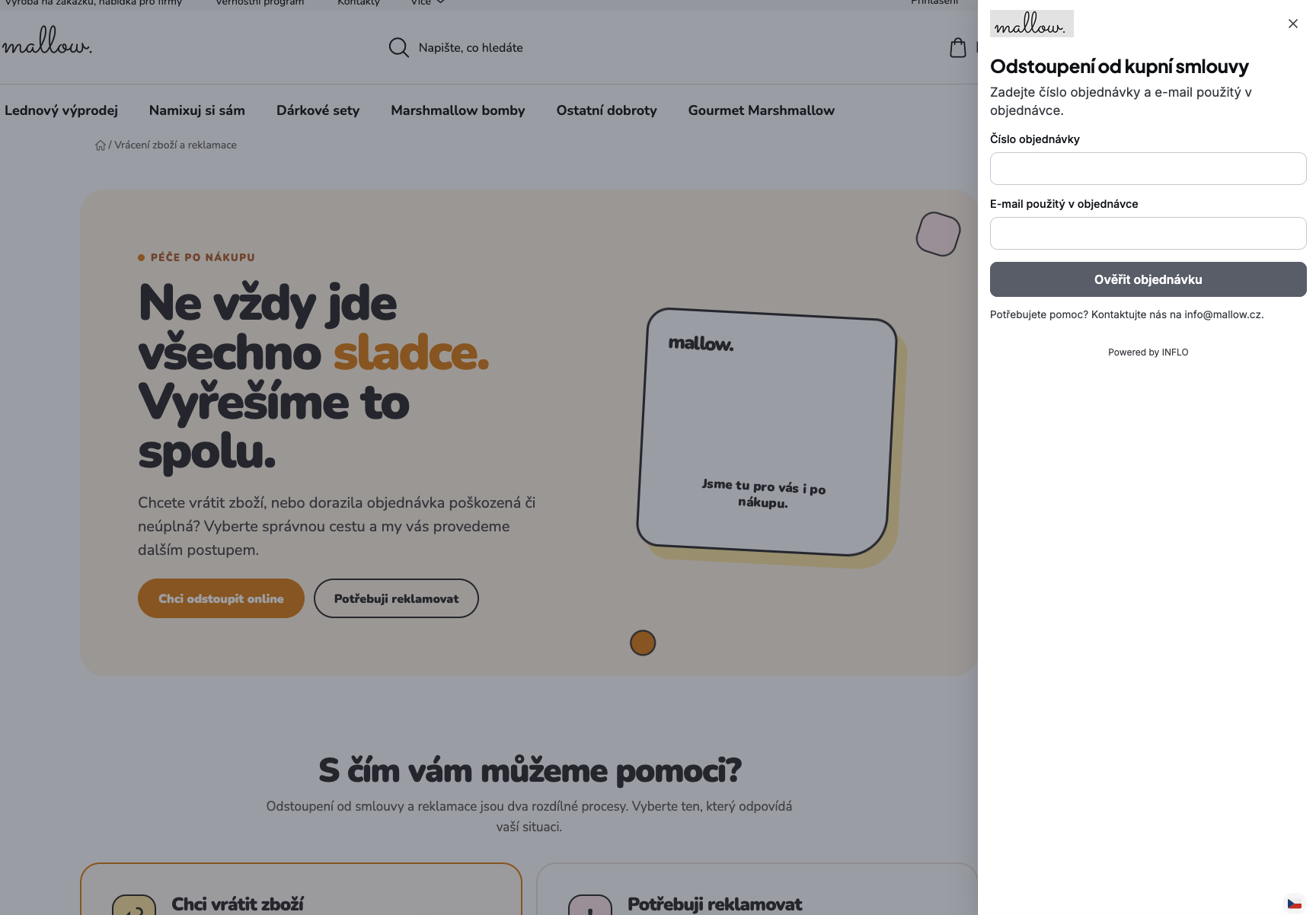
Information needed to identify the consumer and contract.
A separate step confirming the customer’s statement.
A text confirmation including the content, date and time.
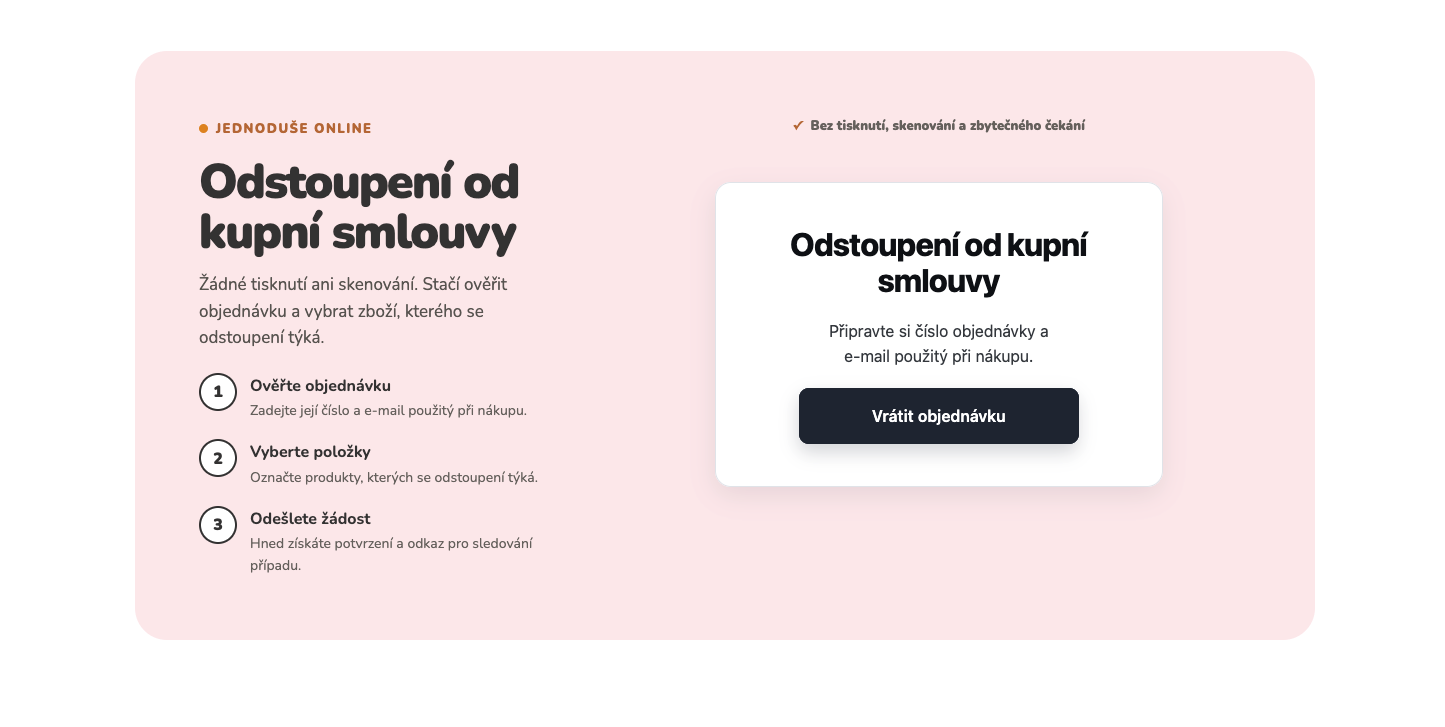
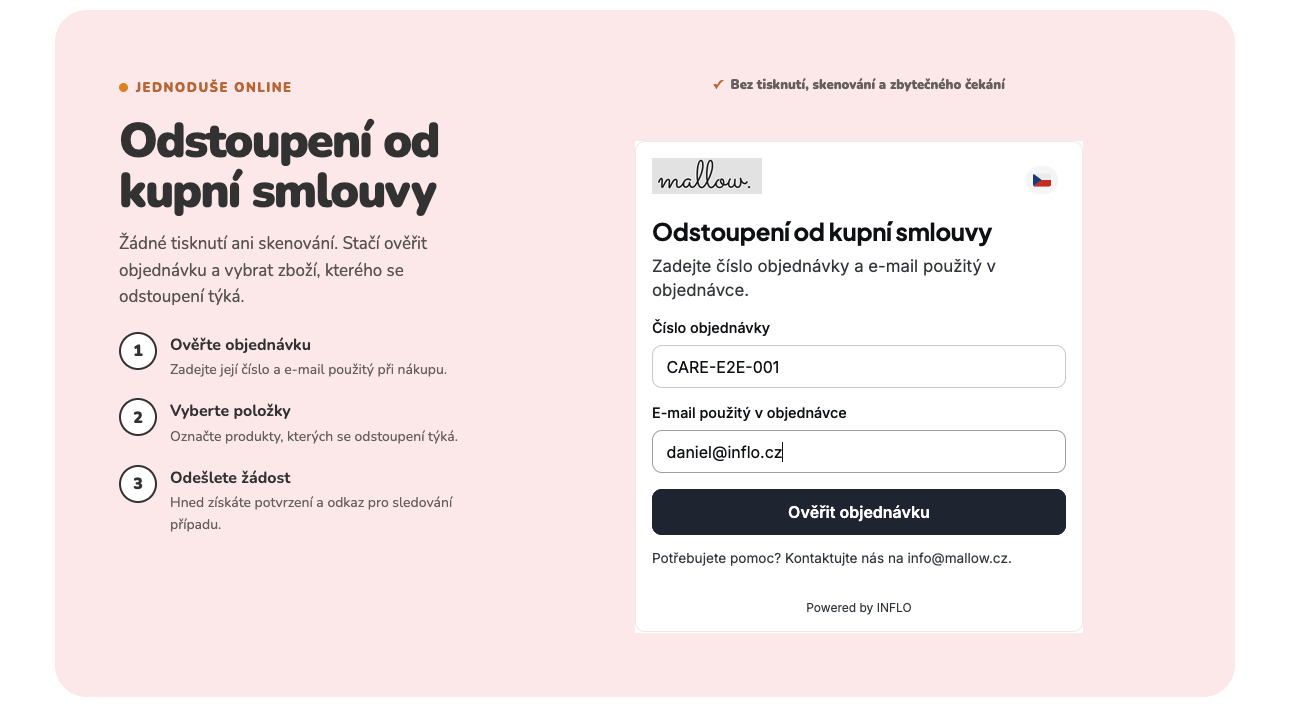
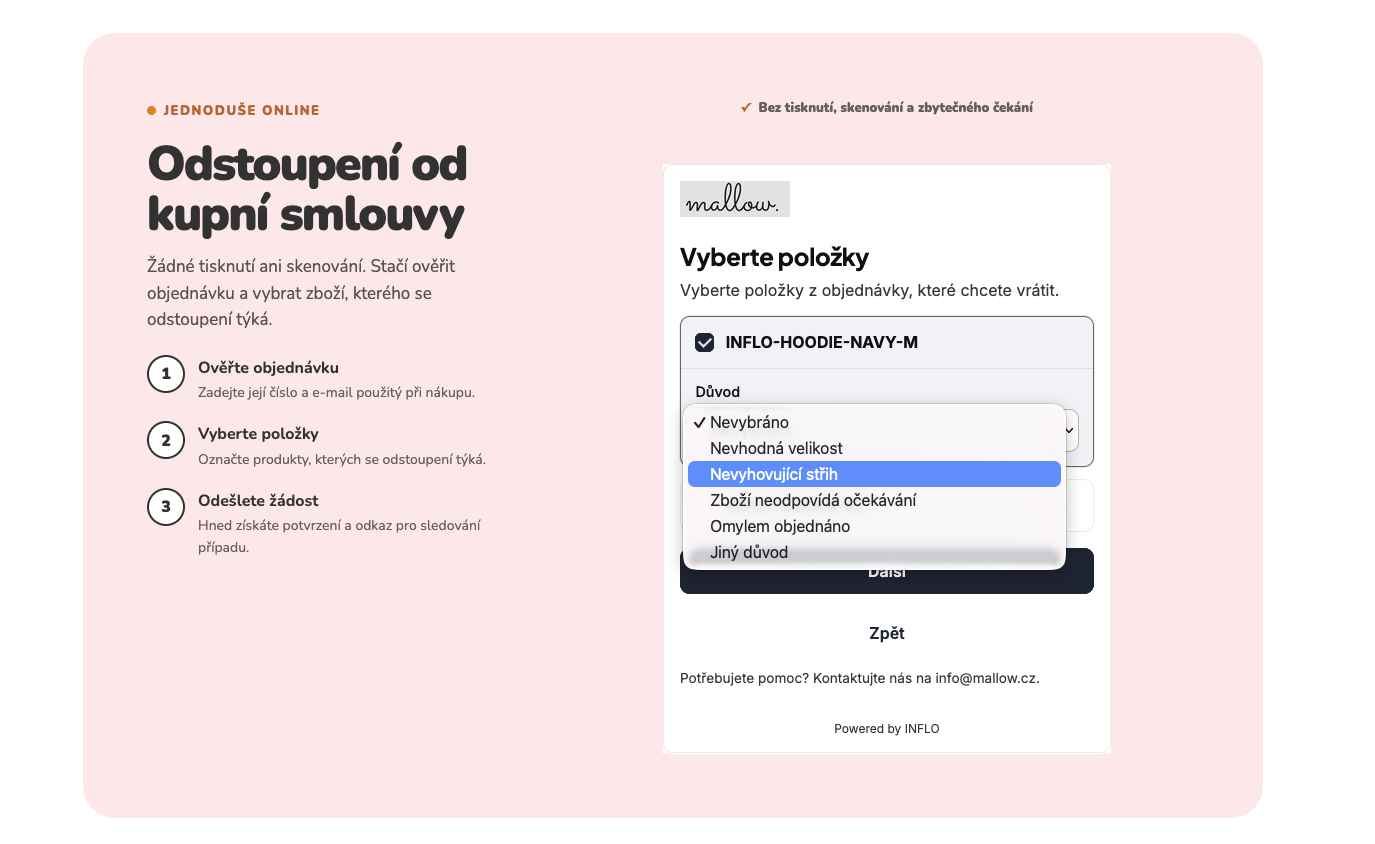
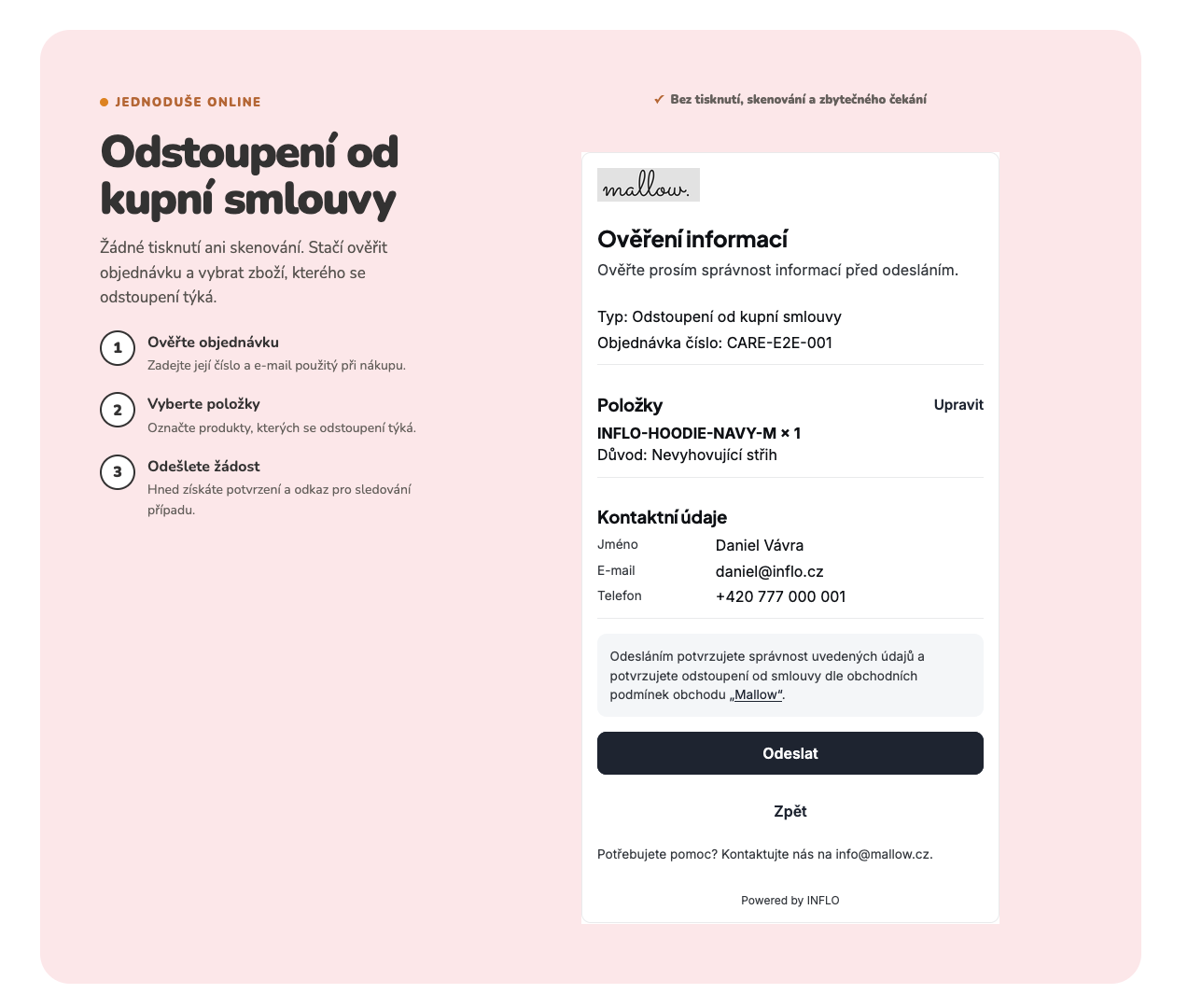
The customer only completes the steps needed to identify the purchase, select items and review the submission.
Find the order using information the customer already knows.
Select the items covered by the withdrawal and review the details.
After submission, the customer receives a record containing the content, date and time.
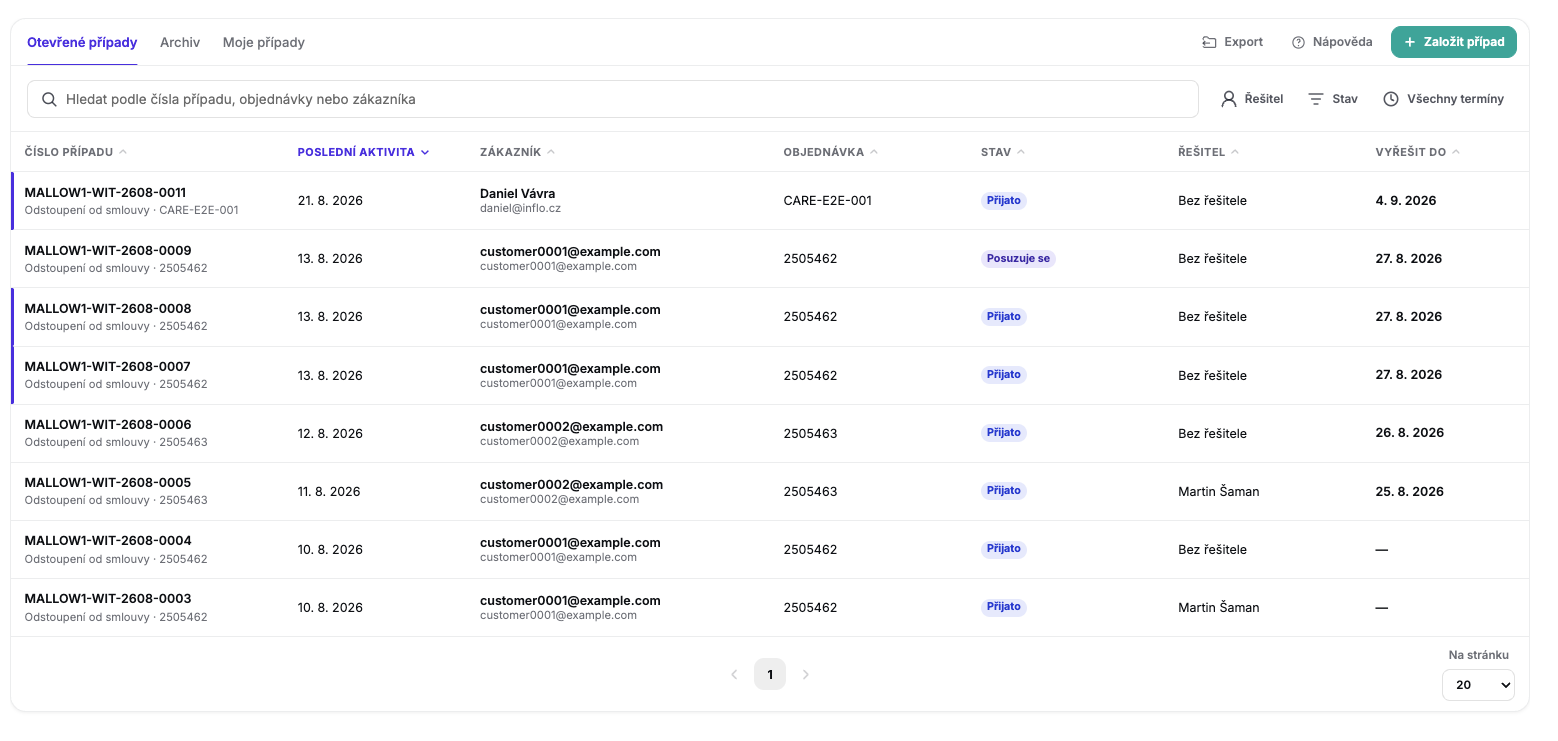
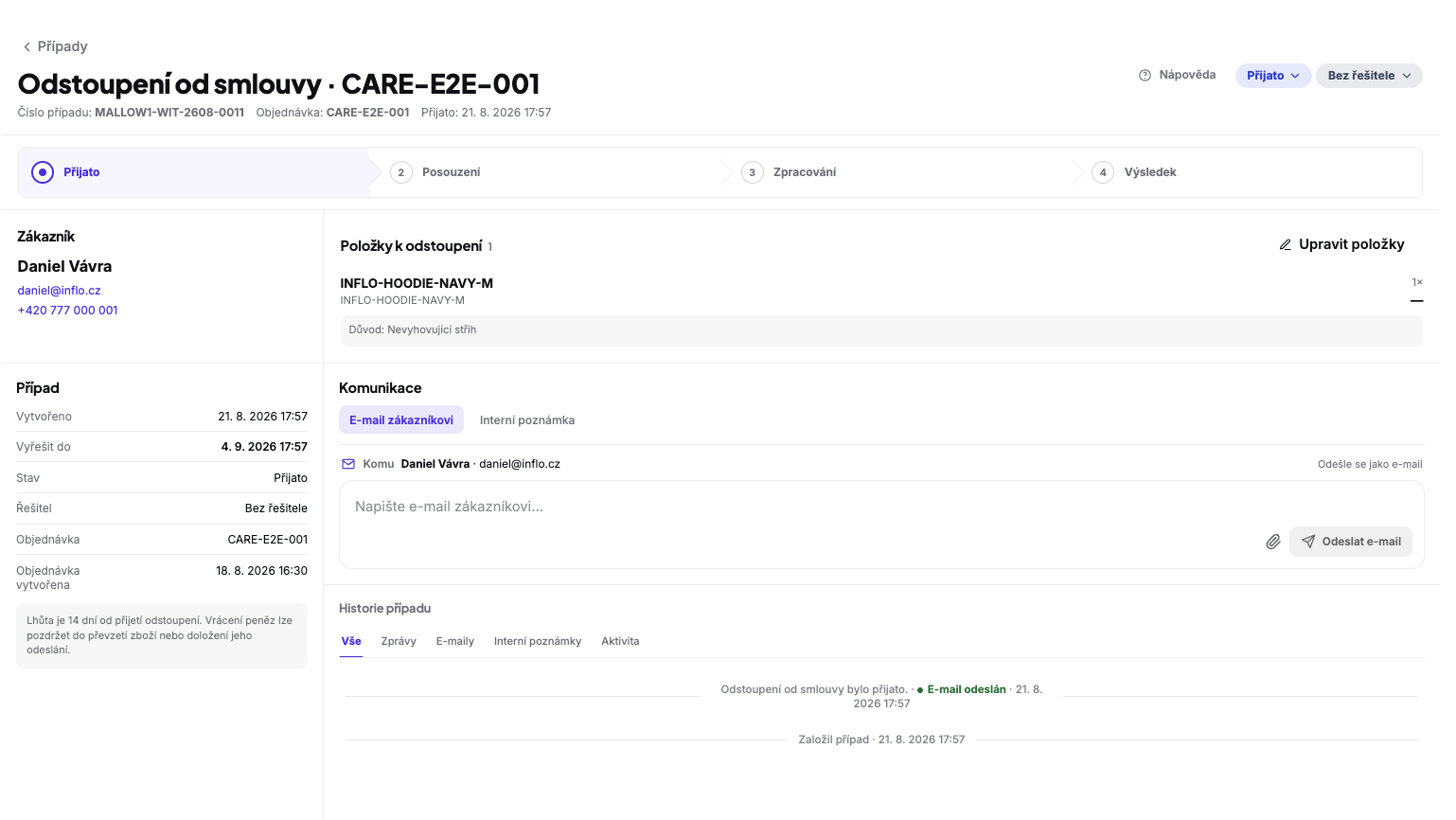
The team can see what is new, what needs the next step and what is closed. The submission, deadlines and history stay together.
A structured portal record is created.
The team verifies the details and next action.
Status, notes, deadlines and communication stay together.
The result and history remain traceable.
See the complete flow from the store entry point to follow-up work in the INFLO portal.
Configure the customer entry point, notifications and instructions. Test the full flow before publishing.
Activate in the portalSelect the store.
Add contacts, branding and notifications.
Choose a deployment option.
Verify the full flow.
Make the journey available.
Every option leads to the same customer flow and portal case.
Contract Withdrawal is a separate product, but it uses the same credits as INFLO Chatbot.
View plans and the credit calculatorCredits are used when a new unique case is activated.
Customers can submit a request and it waits for activation.
No. It is a separate post-purchase product. Credits and the portal are shared.
One newly activated case uses 10 credits. One Chatbot answer uses 1 credit.
The submission is still accepted and waits for activation.
No. Verify the legal setup for each country, product range and business model.
No. They are different processes; returning goods may be an outcome of either.
Send us a short summary if you need help with integration, placement or operational setup.
Create an INFLO account and continue to Contract Withdrawal setup.
Activate in the portal